

As an astronomer who enjoys coding, I had a go at using Apple Shortcuts to make my phone automatically check the weather one hour before sunset and notify me if the sky is forecast to be clear that night. Here’s how I did it.
Create a personalised automation
Open the Shortcuts app, and tap the + button in the top right of the “Automation” pane. Create a personalised automation if you want it to run on your phone or iPad.
You want it to trigger at a certain time of day, so tap on “Time of Day” and select “Sunset”. You can then adjust the offset to be 1 hour (or any time you like) before sunset. It should repeat daily by default, so you can just tap “Next”.
Add an action
When you tap to add an action, you should be able to search for the Weather app. You’ll want to select “Get weather forecast”. This should take you to back to the actions screen. Tap the “Daily” option to change it to “Hourly”.
Now, to add each new segment to the script, you’ll need to use the search bar at the bottom of the screen to access options. Many of these will be under the “Scripting” category.
Collect instances of “Clear” and “Partly Cloudy”
When we get the hourly forecast, it stores the cloud conditions in the variable Condition as a list of 24 items, e.g. “Cloudy”, “Clear”, …
What we want to do is loop through the first 10 items in the Condition, corresponding to the next 10 hours, and count how many times the word “Clear” and “Partly Cloudy” show up. We save (append) them to the variables ClearHours and PartialHours so we can use them later.
Get Hourly forecast at Current Location
Repeat with each item in Condition
    If Repeat Index is less than or equal to 10
        If Repeat Item contains Clear
            Add Repeat Item to ClearHours
        End If
        If Repeat Item contains Partly Cloudy
            Add Repeat Item to PartialHours
        End If
    End If
End Repeat
Words that are bold and underlined are editable words that show up blue in the Shortcuts app. There’s a few ways you could go about this step if you’re interested in experimenting with the different elements, but this does the job well enough.
Trigger informative alerts
Next, we’ll count how many items are in the variables ClearHours and PartialHours. If one or more of the next 10 hours are clear, we’ll show an alert that informs the user that there might be clear skies, and how many hours are expected to be clear that night.
As someone living in the UK, sometimes I’ll take sub-par weather and just try to find a gap in the clouds. So, if it’s not clear but one or more hours will be partly cloudy, we’ll show an additional alert that displays how many hours will be partly cloudy.
If neither of these alerts are triggered, the cloudy skies alert will be triggered, telling the user not to bother getting the telescope out.
Count Items in ClearHours
If Count is greater than 0
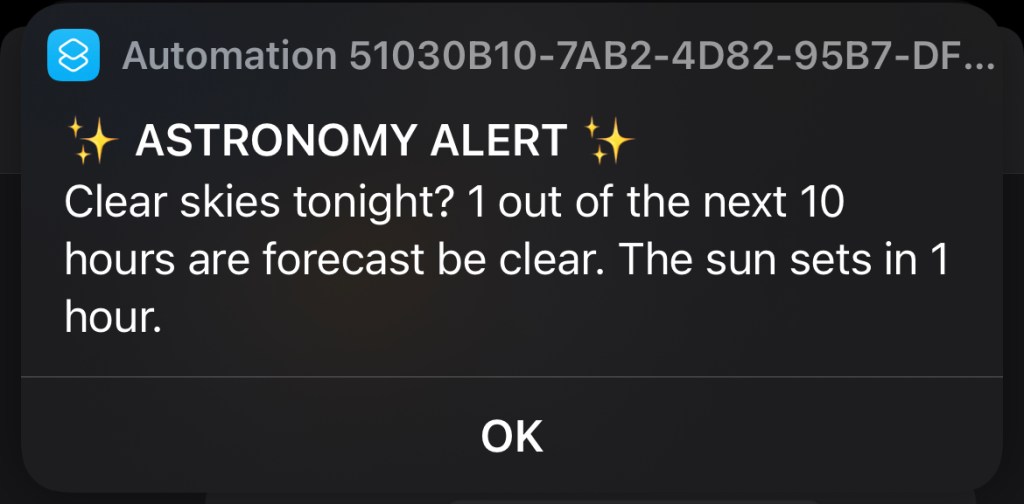
    Show alert Clear skies tonight? Count of the next 10 hours are forecast to be clear. The sun sets in 1 hour.
Otherwise
    Count Items in PartialHours
    If Count is greater than 0
        Show alert It's not "clear" clear, but for Count hours tonight it should be partly clear.
    Otherwise
        Show alert Looks like it's cloudy all night. Too bad. Crack open a beer or something.
    End If
End If
You’ll notice that there’s a little arrowhead in a circle next to the text you write in the Show alert element. Tapping on this reveals the option to give your alert a custom title, and to toggle the “cancel” button.
You can test that your script works by pressing the run button in the bottom right. If it works correctly, you should see an alert that looks something like this:
Reflections and future improvements
I’ve never used Shortcuts before and my coding style is very Python-centric, so it was a challenge trying to figure out how to do the simple things I wanted in a new language. Dragging and dropping code elements is novel at first but begins to get tiresome pretty fast, so I’m not sure I’d hurry back to Shortcuts unless I had another fun idea like this one.
The Shortcut does sometimes glitch, showing multiple alerts when it shouldn’t. I think it’s something to do with the difficulty I had linking different elements, but it’s only a minor bug that doesn’t affect the overall function.
Overall, this was a fun but sometimes frustrating challenge, and I got a useful daily prompt to be more mindful of the weather for stargazing out of it.
If you try out this code, let me know how it goes!

 Nikki Miller, PhD
Leave a comment